

Find and delete the images you do not need
Blurred photos, images of another product, the same picture twice: images like these teach a model the wrong thing. This guide finds them with the filters of the image grid and deletes them, several at once or one by one. Deleting an image cannot be undone.
What you will learn
- How to find the images to delete with the filters
- How to delete several images at once
- How to delete an image while you look at it in the editor
Before you start
You need a dataset with images. The filters are explained in Browse, filter and select images. There is no recycle bin: if in doubt, download the images first.
1. Find the images
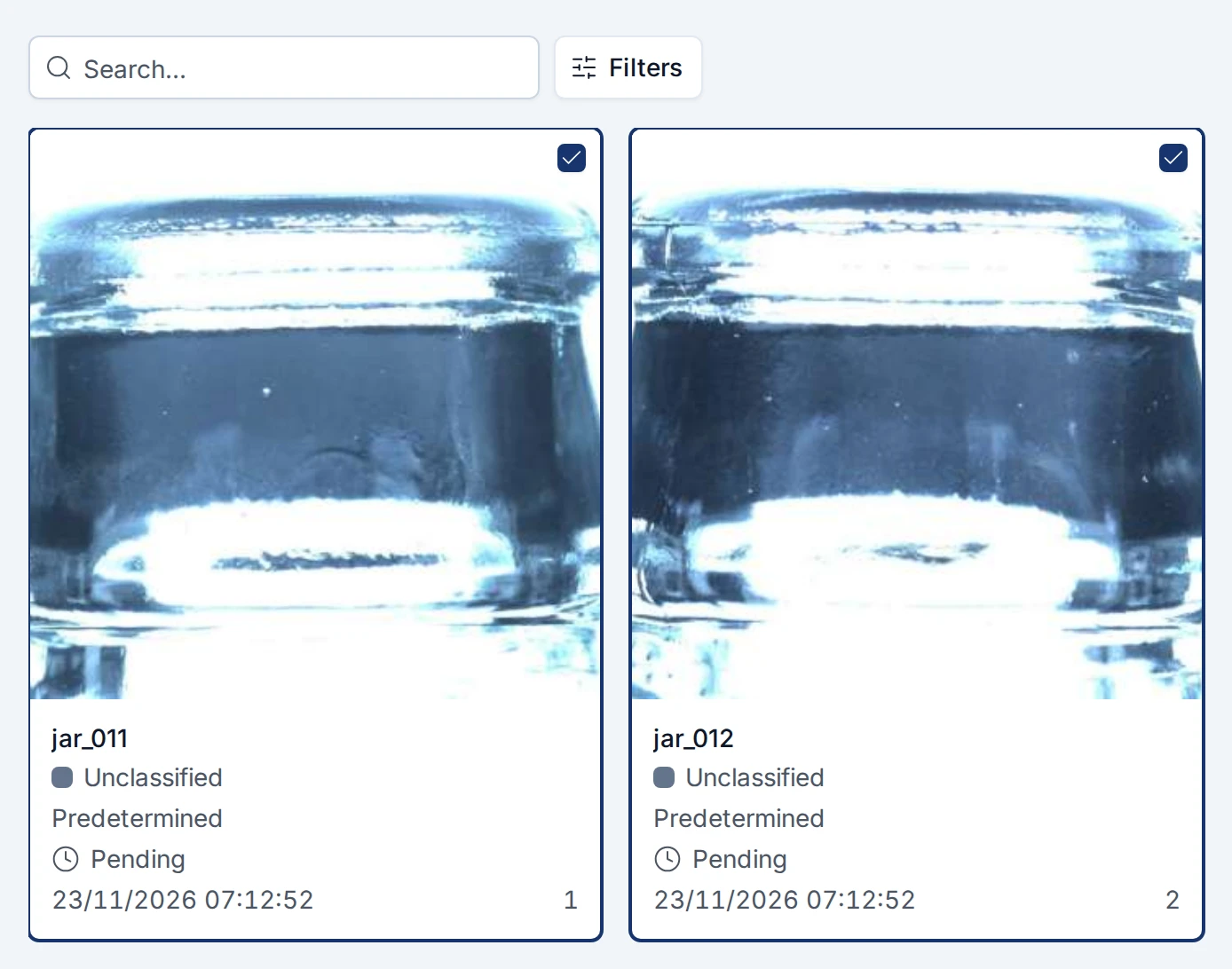
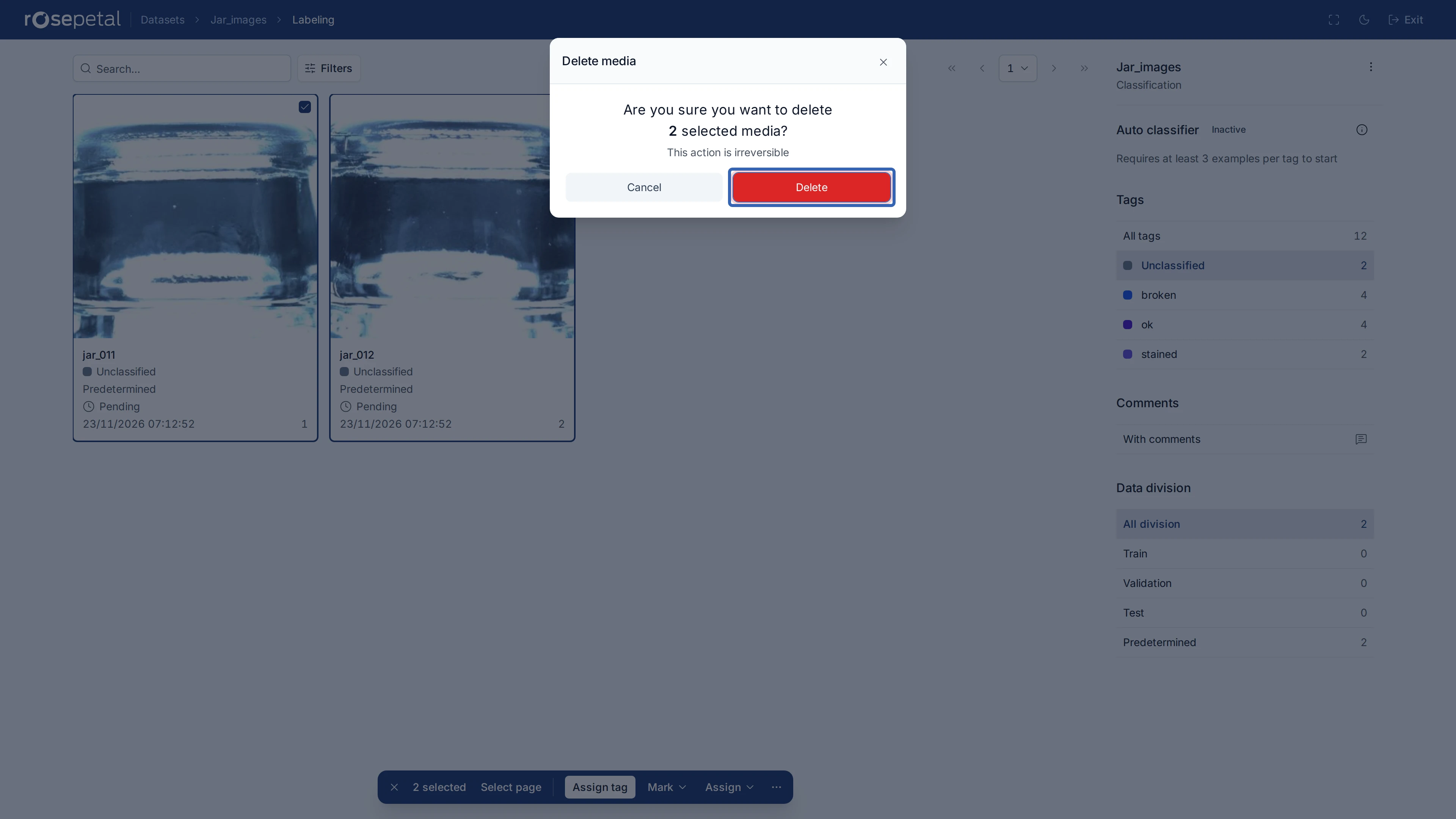
Open the dataset and click «Labeling». The filters on the right narrow the grid down: by tag, by data division, by group, «With comments»; the search box finds an image by its name. Here, «Unclassified» shows two images that were uploaded by mistake.

2. Select them all
Tick one of the images: the bar at the bottom appears. «Select page» ticks every image on the page, here the two the filter shows.
3. Delete them
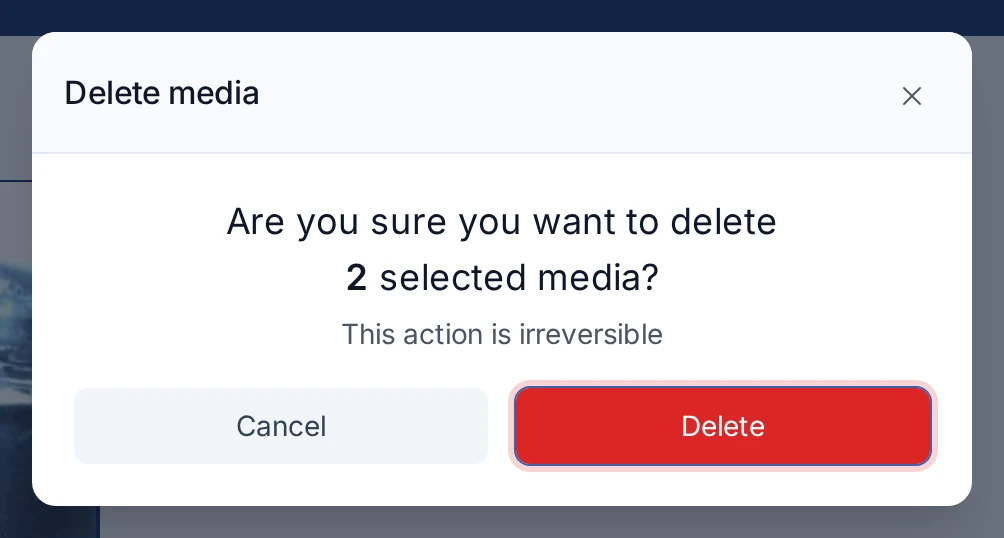
Press the Delete key, or open «More actions», the last button of the bar, and choose «Delete». The platform asks to confirm, with how many images it will delete.
4. Confirm
Click «Delete», or press Enter. The images are deleted with their files and their annotations. A large selection takes a while: «Continue» lets you go on working while it finishes.
5. Delete an image from the editor
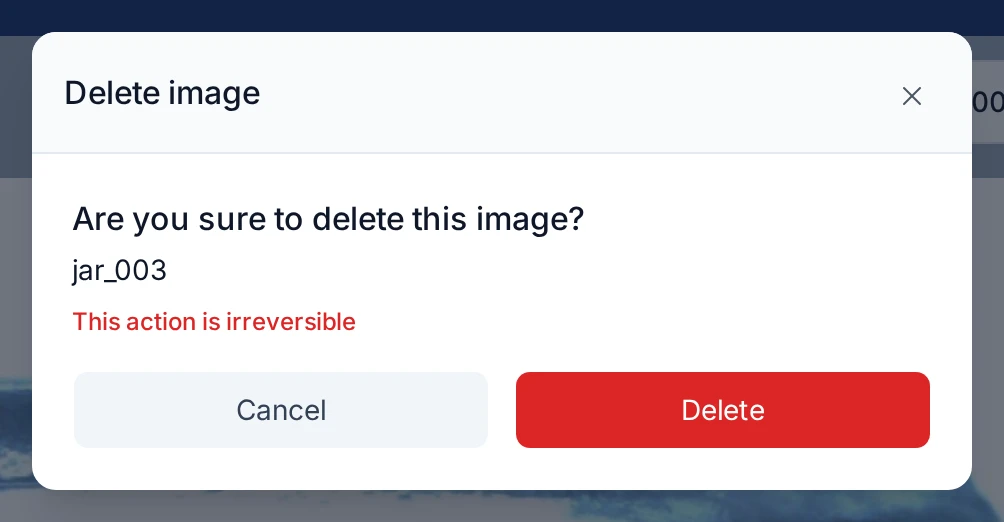
While labeling, you can delete the image on screen: open «Actions», at the top right, and choose «Delete», or press the Delete key when no box or mask is selected. The editor then shows the next image.
6. Confirm in the editor
Confirm, and the editor moves on to the next image.

Good to know
- No recycle bin. Deleted images cannot be brought back. Download them first if you might need them.
- Moving instead of deleting. To keep the images out of the dataset without losing them, move them to another dataset: see Copy or move images between datasets.
- Out of the training only. To keep an image in the dataset but out of the training, mark it as pending: pending images are left out of the training in detection and segmentation datasets.
Next steps
Recorded on Rosepetal release 1.8.15.